LOOK YOUR BEST FOR YOUR NEXT VIRTUAL CONFERENCE PRESENTATION
Congratulations on being asked to present at the next virtual event. Because video presentation is becoming a primary way people deliver their talks, we now find ourselves in front of a webcam much more often. It’s common for business people to feel self-conscious or unprepared to be on camera.
Fortunately, by taking a few simple steps – and making sure you have the right gear – you can always be ready for any virtual event, video meeting, or impromptu video conferencing. We’ve put together this list of tips to help you look your best and feel confident whenever you’re in front of the camera.
LIVE STREAM WEBCASTING & SCREEN SHARING
- For Live Stream Webcasting + Pre-Recording, we are going to use the Google Chrome web browser (and maybe Mozilla Firefox) to connect you to the live stream webcast, please make sure you have the most recent version.
- For Screen Sharing, we are going to use the Gnural Net Screenshare, Chrome Extension.
- Please download it and install: https://chrome.google.com/webstore/detail/gnural-net-screenshare/jkkjcojcpbjegfhlpecegeacikejpjfc
 1. HIGHLIGHT THE MOST IMPORTANT SUBJECT: YOU.
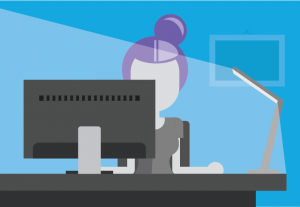
- Position light in front of you so you are well-lit and center of attention.
- Position yourself so that most of the light is coming from in front of you (behind your monitor), instead of from behind you.
- Consider using a ring light like this: https://www.amazon.com/Neewer-Wireless-3200K-5500K-Ringlight-Vlogging/dp/B0822R6XK7/
 2. AVOID BRIGHTLY LIT BACKGROUNDS.
- In this situation, cameras usually adjust to dim the entire image–making you look like a dark silhouette!
- If you have a window behind you, shut the blinds. Otherwise, you will be backlit. You could even buy a nifty monitor light that will bathe your gorgeous face in light.
 3. PLACE YOUR CAMERA AT EYE LEVEL.
- This is much more flattering than the notorious ‘up-the-nose’ shot from below.
- Only your barber wants to stare at the top of your head. Your camera should be at eye level.
- If possible, stand up! This keeps you dynamic and energetic. You can do this during your virtual presentation by using a standing desk, a large box or a stack of books.
 4. CHECK YOUR SURROUNDINGS.
- Your surroundings say a lot about you. Let’s make sure that they say the right things.
- Dirty clothes in a pile, an unmade bed, and so forth give the impression that you’re not a professional to be trusted with serious work. Clean up and have a simple background (a plain wall, a potted plant, or a bookshelf works perfectly).
 5. WEAR BOLD SOLID COLORS.
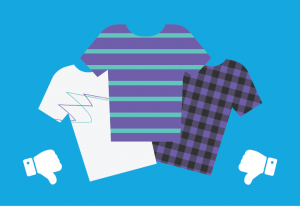
- Stripes, large patterns and prints can be distracting to clients and colleagues.
- Avoid wearing brilliant white (it can blow out the shot) or jet black (you might look like a floating head, if you have a black background), or anything with a small or tight pattern (it can cause a strange, shimmery, moiré effect on camera).
 6. MAKE SURE YOU HAVE A STRONG, STABLE INTERNET CONNECTION.
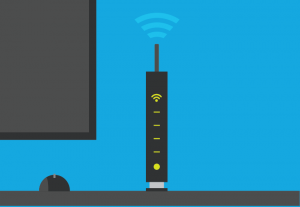
- This will help avoid streaming delays, so you don’t become a ‘frozen face’ on your next call.
- If at all possible, use an Ethernet cable to hardwire your computer into the internet. Sure, WiFi works great for email, but video quality is best on a solid wired internet connection, so wire in when you can. Otherwise, just make sure you have serviceable WiFi.
- We can help you figure out how to connect your computer to the internet with an Ethernet cable.
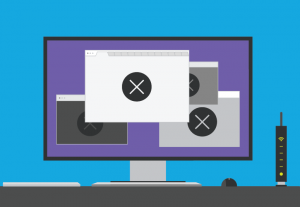 7. BE AWARE OF WHAT YOU’RE SHARING.
- Close unnecessary programs. These consume resources needed to deliver a clear picture and could compromise privacy.
- Prevent accidentally sharing personal info by clearing out anything on your computer’s desktop or browser that you don’t want seen.
- Tip: You can tidy up your computer quickly by moving any desktop files into one folder to sort out later.
 8. CHECK YOUR AUDIO.
- While this may not affect your visual appearance, poor audio is unprofessional and can impact perception and productivity.
- Consider using a Blue Yeti USB Microphone or a headset for the best possible audio
- At the very least use the earbuds and wired mic that came with your cell phone
- Fun fact: barking dogs and slamming doors are not just annoying in person, they are also annoying via video conferencing! Find a quiet space to meet, shut the door, and mute yourself as necessary.
 9. DO A TEST-RUN
- Ensure the background and lighting are up to snuff, and double check the camera is focused on you!
- Click here to run a test to see an all-in-one checklist for connectivity, media access, and quality: https://tokbox.com/developer/tools/precall/
- Test Early + Test Often!
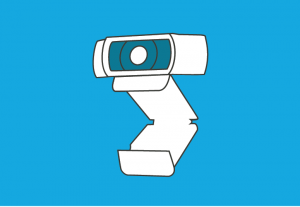 10. USE AN EXTERNAL HD WEBCAM.
- Whether you’re on your laptop or desktop, at home or the office, using an external webcam will help improve video clarity, lighting, and speed so you always look your best.
- Consider using a Logitech C920 PRO HD Webcam, a Logitech Brio Ultra HD Pro Webcam, or a Logitech 4K Pro Magnetic Webcam
LET YOUR ON-CAMERA PERSONALITY SHINE.
- Once your video meeting gets underway, here are a few techniques you can use to ensure you come across as comfortable and engaged, like a professional:
- Look straight at the camera to make “eye contact” with the people you are speaking to.
- Try to avoid looking down at your notes or off to the side too often.
- Name people when you’re speaking to them; it helps them feel included.
- Vary the tone in your voice to express your warmth and personality, a technique taught to broadcast journalists and stage actors.
Need some help getting this all sorted out. Or need to pre-record your virtual event’s presentation, give us a call and we’ll get you going: 1-888-695-2396
Thank you to Logitech for the graphics & inspiration.